The terminal app
The terminal app is the desktop app’s screens in a terminal: chat, models, discover, the engine and settings, over the same engine as jitllm and jitllmd. It runs the engine in its own process, works over SSH, and shares its settings and saved chats with the desktop app, so a chat started in one is in the other’s list.
Install and run
Section titled “Install and run”Install it with the install script:
curl -fsSL https://raw.githubusercontent.com/samyfodil/jitllm/main/scripts/install.sh | sh -s -- tuijitllm-tui models/qwen3.jlmOn Windows, set $env:JITLLM_PROGRAMS = "tui" before the PowerShell line. Its archive, jitllm-tui_<version>_<os>_<arch>, is also on the latest release. It is a separate Go module; to build it from source:
cd jitllm/tuigo build -o "$(go env GOPATH)/bin/jitllm-tui" .With no model it opens on the Models screen. The flags override a setting for this run only:
| Flag | Default | What it sets |
|---|---|---|
-chat |
the setting | apply the model’s chat template; -chat=false is a raw completion |
-device SPEC |
the setting | where to run, in the device grammar |
-ctx N |
the setting | the context length |
-models DIR |
the configured folders | list this folder instead |
-mouse |
off | scroll with the mouse wheel; the terminal’s own text selection then needs shift |
The app paints its own background, so it looks the same whatever your terminal’s theme is. Use a terminal with 24-bit colour.
Getting around
Section titled “Getting around”F1 to F5 (or alt+1 to alt+5) switch between Chat, Models, Discover, Engine and Settings, and esc goes back to the chat. ctrl+k opens the command palette: type to filter every action the app has, including switching or closing an open model and moving the seam. The bottom line always lists the keys the current screen takes. ctrl+c quits.
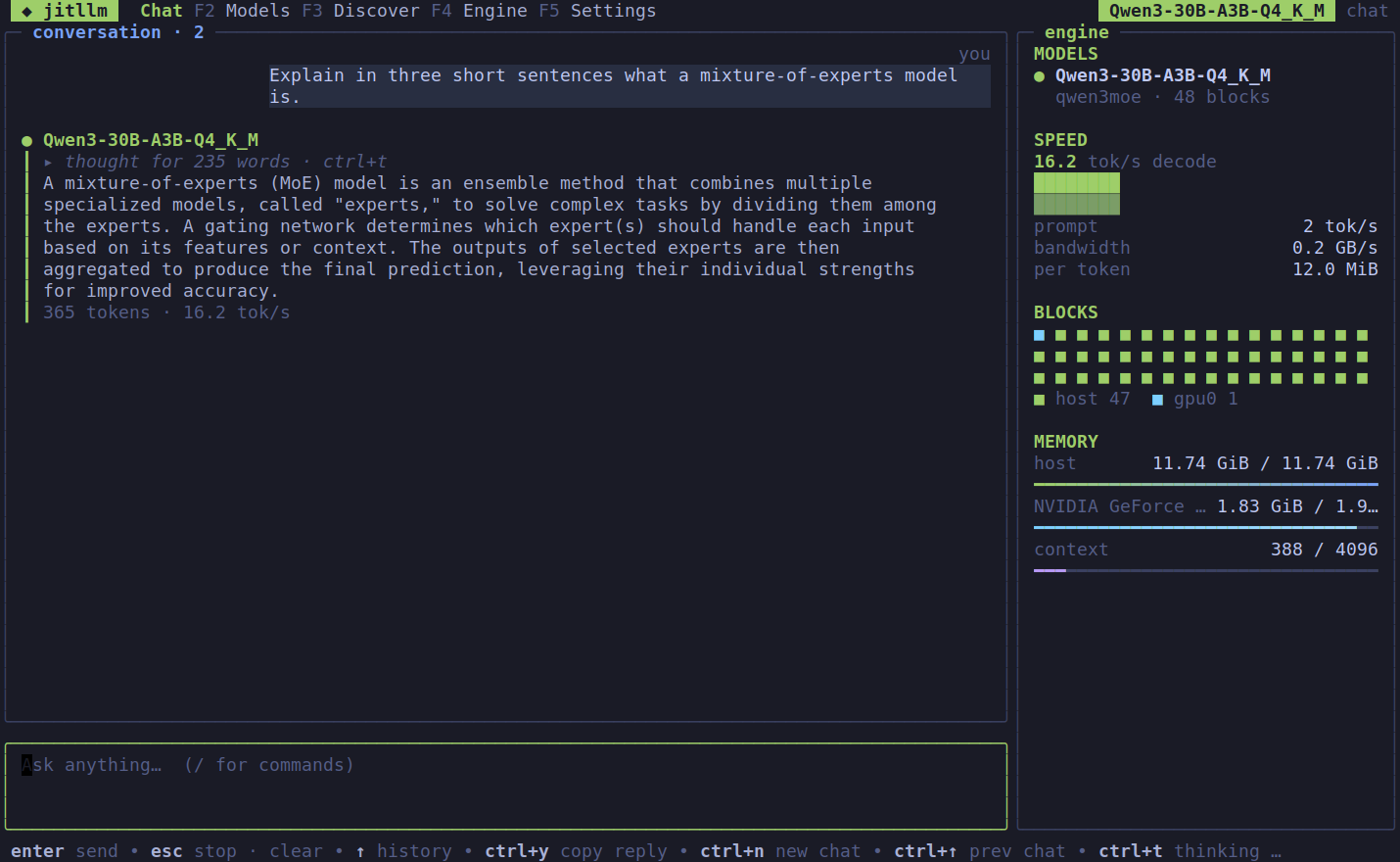
The saved chats, the transcript, the prompt, and at the right the engine: the open models, the decode rate, which blocks run where and how full each memory is. Above, Qwen3-30B-A3B, a 30B mixture of experts, answers on a laptop with a 4 GB GPU: one block on the card, the other 47 on the CPU, its experts paged from disk.
| Key | Does |
|---|---|
enter |
send |
ctrl+j or alt+enter |
a new line in the prompt |
↑ ↓ |
earlier and later prompts |
esc |
stop the reply, or clear the prompt |
ctrl+t |
show or fold the reasoning |
ctrl+y |
copy the last reply |
ctrl+n |
a new chat |
ctrl+↑ ctrl+↓ |
the previous and next chat |
pgup pgdn |
scroll the transcript |
A prompt starting with / is a command, completed with tab:
| Command | Does |
|---|---|
/new, /delete |
start a chat, delete this one |
/chat, /completion |
the chat template on or off |
/system <text> |
set the system prompt |
/temp <value> |
set the sampling temperature |
/seam <blocks> |
put that many blocks on the device |
/think, /copy |
fold the reasoning, copy the last reply |
/models, /engine |
open that screen |
/quit |
leave |
Models
Section titled “Models”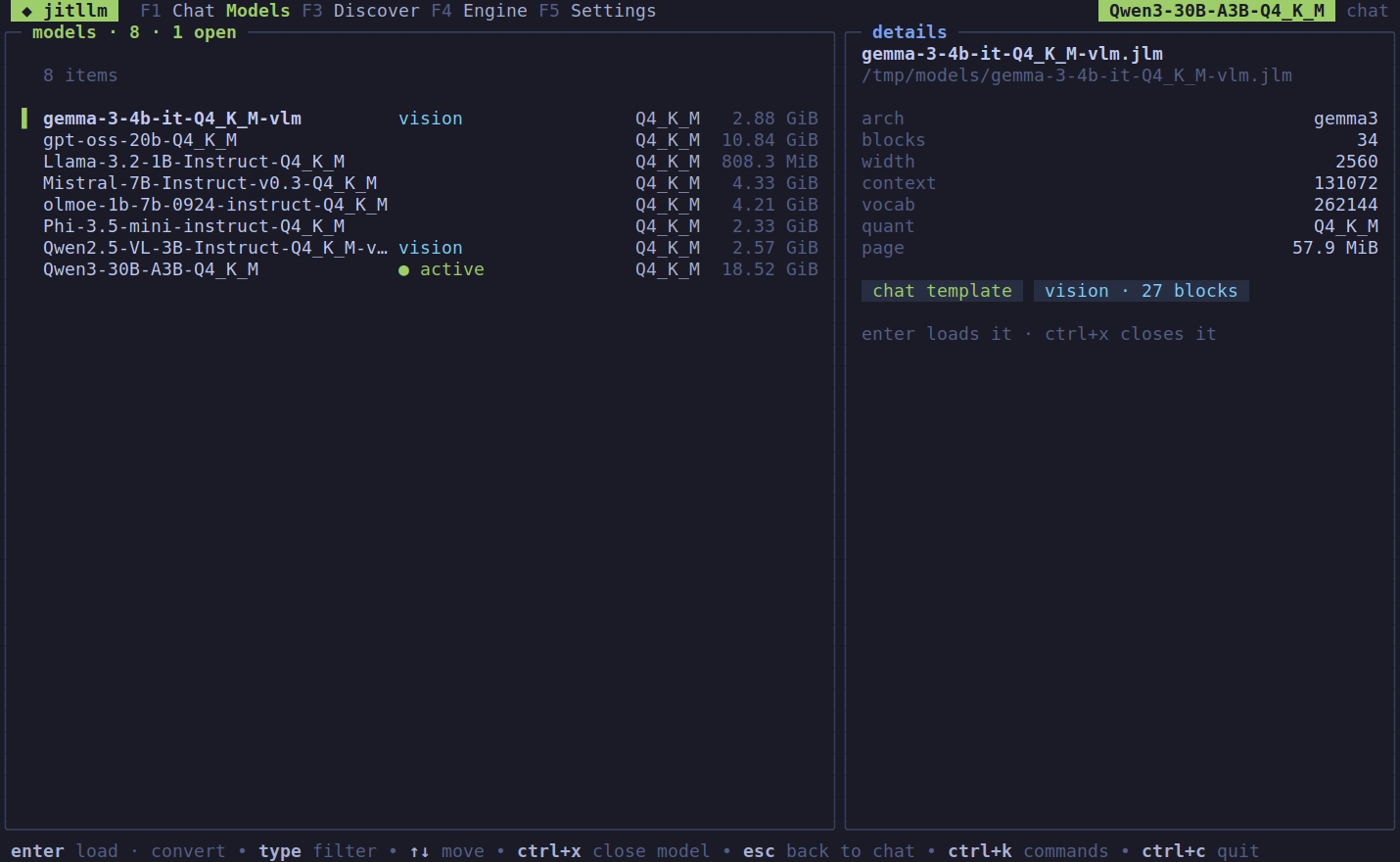
The .jlm files in your model folders and the GGUF and safetensors files beside them, with what each is, its quantization and size, and which are open. The selected file’s details are read from its header without loading it: architecture, blocks, width, context, vocabulary, page size, and whether it carries a chat template and a vision tower. enter loads a container, converts a source into one, or rebuilds a container an older version wrote; ctrl+x closes it. Type to filter.
Discover
Section titled “Discover”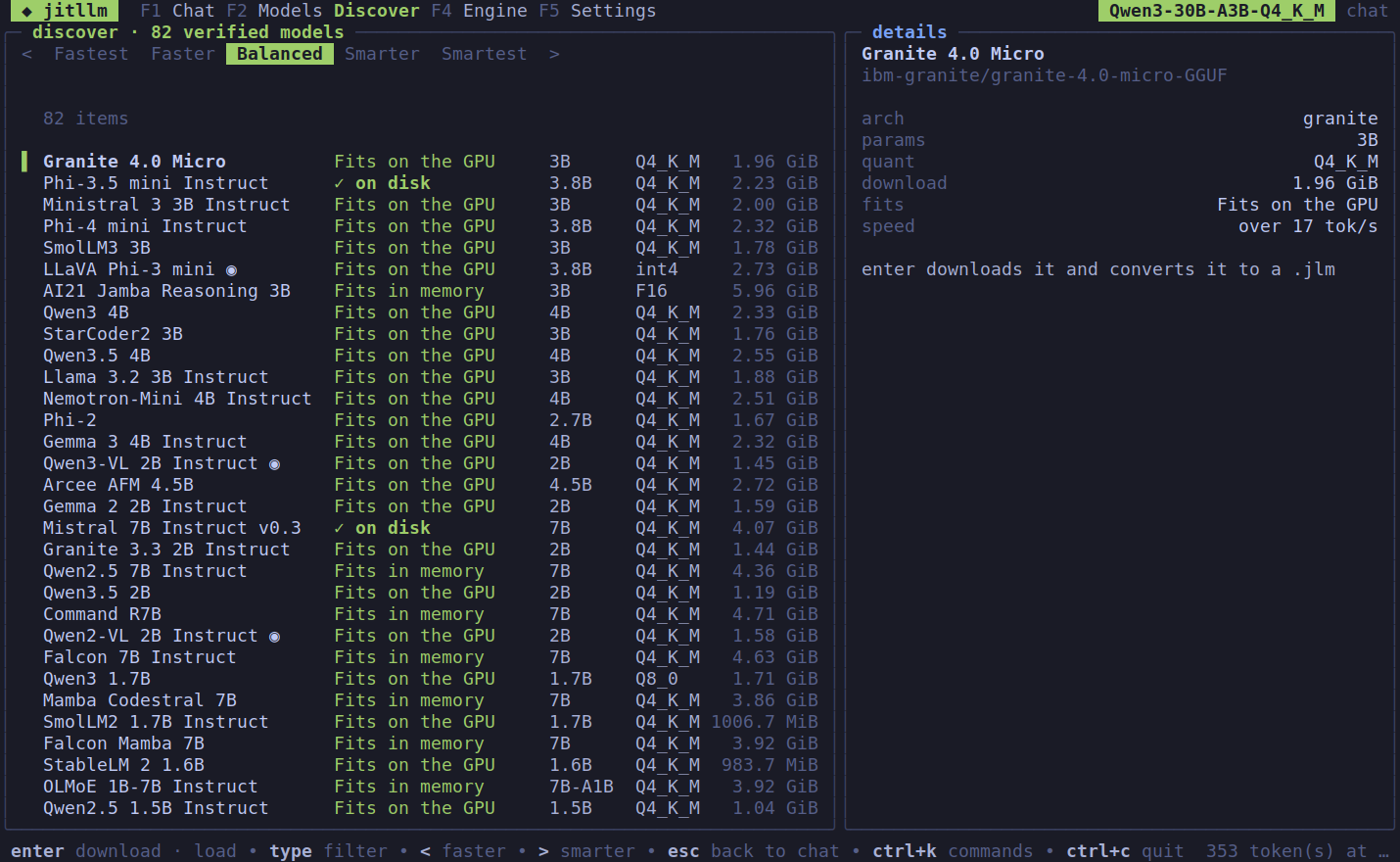
The catalog, ranked for this machine after the app measures it: whether each model fits on the GPU, fits in memory or pages from disk, and the speed to expect. < and > move the ranking from fastest to smartest. enter downloads a model and converts it into a .jlm, or loads it when it is already on disk.
Engine
Section titled “Engine”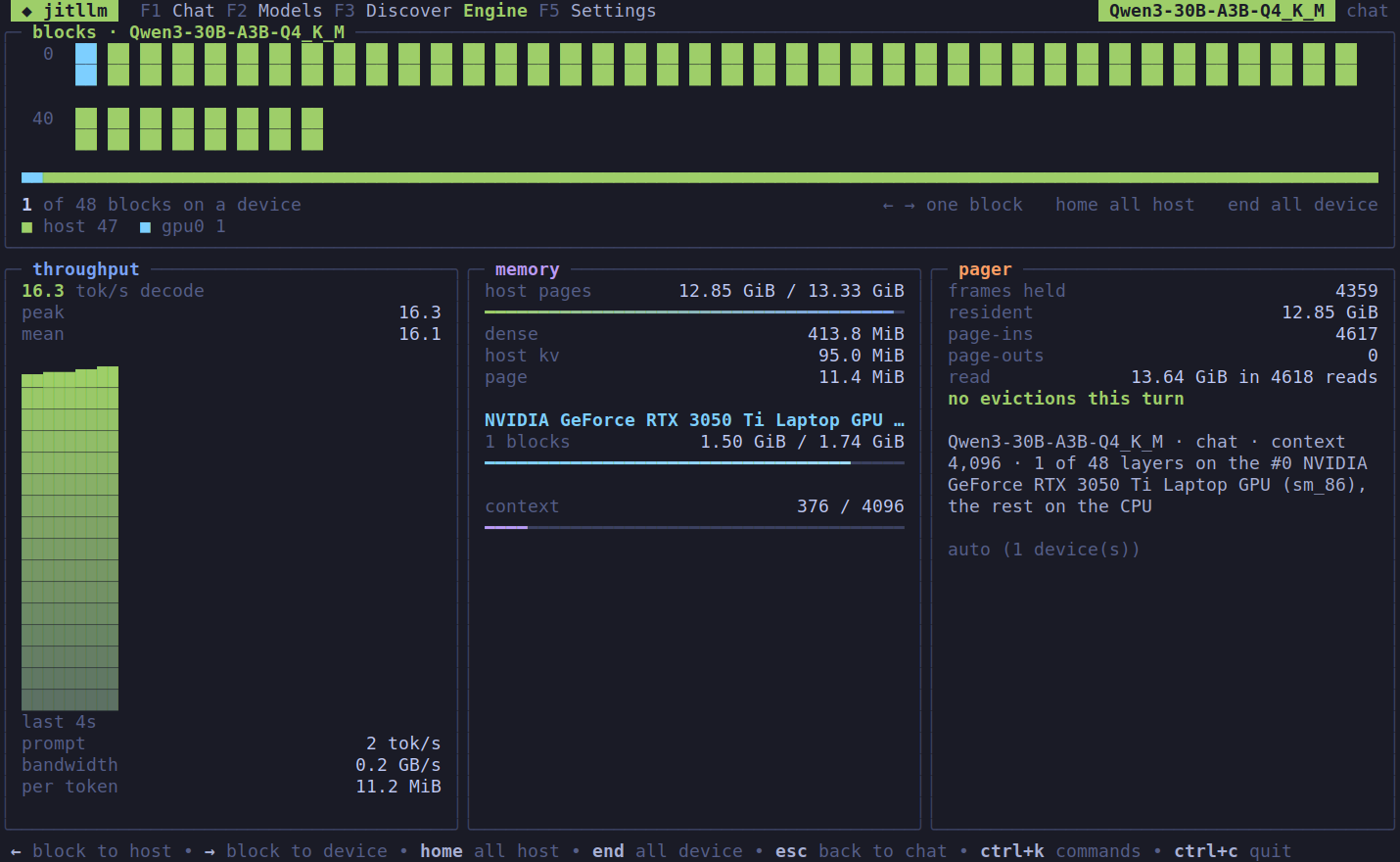
Every block of the open model and where it runs, the decode rate over the last seconds with its bandwidth and bytes per token, how full each memory is, and what the pager has read. → moves one more block onto the device and ← brings one home; home puts every block on the host and end every block on the device. The conversation keeps going across a move: the KV cache and any recurrent state move with the blocks. See Devices and placement and Memory and paging.
Settings
Section titled “Settings”The same settings as the desktop app, in the same file: sampling, the seed, the chat template, the system prompt, the prompt cache on disk, the devices, the context and the model folders (the first is where conversions go). tab and shift+tab move between fields, enter on the last field saves, and esc throws the changes away.
The screenshots on this page are the app running Qwen3-30B-A3B for real, in a 130-column terminal.